Published
- 6 min read
Polybar: A Minimal Bar for Linux, From Install to Autostart
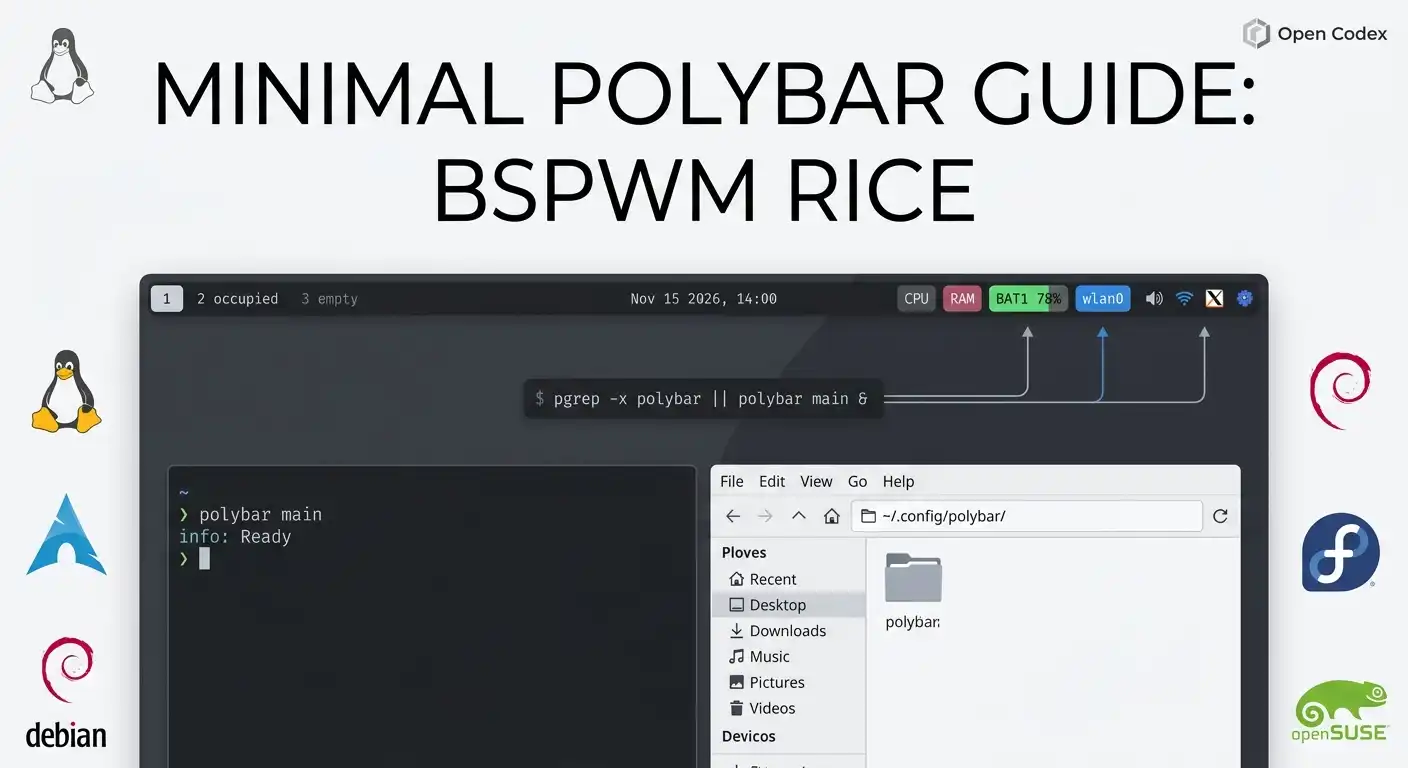
Most polybar tutorials assume you already live in a tiling window manager and know what a bar section is. This one does not. You install polybar, drop one config file, run it, and make it survive a reboot.
Two things before we start, because they save people hours:
- Polybar is X11 only. On Wayland (sway, Hyprland, GNOME on Wayland) it will not work. Waybar is the usual alternative there.
- The config below uses the bspwm workspace module, so it assumes bspwm. If you use i3 there is a one-line swap further down.
By the end you get a 28px bar with workspaces on the left, the date in the center, and CPU, RAM, battery, wifi, volume and system tray on the right.
Install
Pick your distribution.
Arch Linux:
sudo pacman -S polybarDebian and Ubuntu (on Ubuntu the package lives in universe):
sudo apt update && sudo apt install polybarFedora:
sudo dnf install polybaropenSUSE:
sudo zypper install polybarVoid:
sudo xbps-install -S polybarAlpine:
sudo apk add polybarNixOS, or any distro with Nix installed:
nix profile install nixpkgs#polybarCheck that it landed:
polybar --versionIf your distribution does not package it, compile from source. The compiling page in the wiki lists the build dependencies, and the full list is basically cmake, pkg-config, python3 and the xcb libraries.
Where the config file lives
Polybar reads the first path that exists, in this order:
       $XDG_CONFIG_HOME/polybar/config
$XDG_CONFIG_HOME/polybar/config.ini
$HOME/.config/polybar/config
$HOME/.config/polybar/config.ini
/etc/xdg/polybar/config.ini
/etc/polybar/config.ini
On a normal setup that means ~/.config/polybar/config.ini. Create it:
       mkdir -p ~/.config/polybar
$EDITOR ~/.config/polybar/config.ini
If your distro already dropped a config at /etc/polybar/config.ini, do not edit that one. Package updates overwrite it. Copy it to your home directory and work there.
The config
Paste this as is:
       [bar/main]
width=100%
height=28
radius=0
fixed-center=true

background=#222222
foreground=#eeeeee

line-size=2
border-size=0
padding-left=1
padding-right=1
module-margin=1

font-0=sans:size=10;2

modules-left=bspwm
modules-center=date
modules-right=cpu memory battery wlan pulseaudio tray

#tray-position=right
#tray-padding=2

cursor-click=pointer
cursor-scroll=ns-resize

[module/bspwm]
type=internal/bspwm

label-focused=%name%
label-focused-foreground=#222222
label-focused-background=#eeeeee
label-focused-padding=2

label-occupied=%name%
label-occupied-foreground=#eeeeee
label-occupied-padding=2

label-urgent=%name%
label-urgent-foreground=#ffffff
label-urgent-background=#cc3333
label-urgent-padding=2

label-empty=%name%
label-empty-foreground=#666666
label-empty-padding=2

[module/cpu]
type=internal/cpu
interval=2

format-prefix="CPU"
format-prefix-padding=1

label=%percentage:2%%

[module/memory]
type=internal/memory
interval=2

format-prefix="RAM"
format-prefix-padding=1

label=%percentage_used:2%%

[module/battery]
type=internal/battery
battery=BAT1
adapter=ACAD

poll-interval=5

format-charging=<label-charging>
format-discharging=<label-discharging>
format-full=<label-full>

label-charging="BAT %percentage%%"
label-discharging="BAT %percentage%%"
label-full="BAT FULL"

[module/wlan]
type=internal/network
interface=wlan0
interval=3

format-connected=<label-connected>
format-disconnected=<label-disconnected>

label-connected="WiFi %essid%"
label-disconnected="WiFi OFF"

[module/pulseaudio]
type=internal/pulseaudio

format-volume=<label-volume>
format-muted=<label-muted>

label-volume="VOL %percentage%%"
label-muted="MUTE"

[module/date]
type=internal/date
interval=1

date=%d/%m/%Y
time=%H:%M

label=%date% %time%

[module/tray]
type=internal/tray
tray-spacing=4
One version check before moving on, because it changes the tray lines. [module/tray] with type=internal/tray needs polybar 3.7 or newer. Debian 12 and Ubuntu 24.04 still ship 3.6.3, where that module type does not exist: polybar logs an error and the tray simply never appears. On 3.6 and older, remove tray from modules-right and uncomment tray-position=right. That is exactly what those two legacy lines at the top are for. Confirm your version with polybar --version.
The four values that will be wrong on your machine
Polybar does not crash when a module points to hardware that does not exist. The module just disappears, and you spend twenty minutes thinking polybar is broken. Check these before you complain about anything else.
Battery and adapter. battery=BAT1 and adapter=ACAD are the names of the files in sysfs. Find yours:
ls /sys/class/power_supply/The usual pairs are BAT0 with AC, or BAT1 with ADP1. If your laptop has two batteries, you will see BAT0 and BAT1.
Network interface. interface=wlan0 is the old naming scheme. Check the real name:
ip -br linkModern systems give you something like wlp2s0, or enp3s0 for ethernet. Put the wireless one in interface=.
The workspace module. modules-left=bspwm is the bspwm module. If you run i3, replace the whole [module/bspwm] block with:
       [module/i3]
type=internal/i3
format=<label-state> <label-mode>
and change modules-left=bspwm to modules-left=i3. On any other window manager, remove it from modules-left.
The font. font-0=sans:size=10;2 resolves through fontconfig, so it works almost everywhere, but sans has no icons. If you want Nerd Font glyphs later, list a patched font as a second entry:
       font-0=JetBrainsMono Nerd Font:size=10;2
font-1=JetBrainsMono Nerd Font:style=Bold:size=10;2
Check what you actually have installed with fc-list : family | sort -u.
Run it
polybar mainmain is the name after bar/ in [bar/main]. If your config defines a single bar, plain polybar also works.
Flags you will actually use:
polybar -mlists connected monitors.polybar -Mincludes cloned ones.polybar -l info mainprints the log. This is where messages likeBattery BAT1 not foundappear, and they are the fastest way to find out why the bar is missing.polybar -r mainreloads automatically when you save the config file, which is much better than killing and restarting while you tweak colors.
The log is not optional. Almost every “the bar does not appear” question is answered by a line in it.
Start it on every boot
Polybar is a plain X client. It does not need systemd, it needs to start after the window manager. Where you put that depends on your WM.
bspwm. Add this to ~/.config/bspwm/bspwmrc, which has to be executable (chmod +x ~/.config/bspwm/bspwmrc):
pgrep -x polybar > /dev/null || polybar main &The pgrep guard matters. Without it, every bspwm reload launches another polybar, and after three reloads you have three bars stacked on top of each other and no idea why.
i3. In ~/.config/i3/config:
exec_always --no-startup-id polybar mainUse exec_always, not exec. exec runs once at login, so i3-msg restart leaves you without a bar.
Openbox. In ~/.config/openbox/autostart:
polybar main &Plain X with startx. In ~/.xinitrc, before the line that starts your WM:
       polybar main &
exec bspwm
Multiple monitors. Launch one process per monitor. Add monitor = ${env:MONITOR:} to [bar/main] and loop:
       polybar -m | cut -d: -f1 | while read -r m; do
  MONITOR="$m" polybar main &
done
When something goes wrong
The bar never appears. Run polybar -l info main in a terminal. The config path is wrong, or the bar section is not called main.
The bar covers windows, or windows cover the bar. With bspwm, add wm-restack = bspwm to [bar/main]. Some minimal window managers need override-redirect = true plus a gap configured on their side instead.
One module is missing. The value it depends on is wrong: battery name, adapter name, interface, or the window manager socket. The log names it.
The tray is empty. Polybar draws XEmbed tray icons. Applications that only publish StatusNotifier items need a bridge such as snixembed to appear there.
The volume module shows nothing. It needs PulseAudio, or PipeWire with pipewire-pulse. Check with pactl info.
Icons render as empty squares. Your font does not contain those glyphs. Install a Nerd Font and add it as font-0.
Text looks wrong or cut off. Check dpi-x and dpi-y in [bar/main]. The ;2 at the end of font-0 is the vertical offset for that font, and it is what keeps text centered inside the bar height.
That is the whole bar
You now have a 60-line config you understand line by line, which is the point. A rice you copied from a screenshot and cannot debug is worse than a plain bar you can. From here the useful next step is adding one module at a time, restarting with polybar -r main after each change, and reading the log when a module refuses to appear.
The polybar wiki has a page per module. The ones I reach for most are internal/backlight, internal/temperature and internal/script, which is how you put anything else you want in the bar.